Step 1: Check your subject's grade.
Step 2: Check the grade points (GP).
Step 3: Check subject's credit hours.
Step 4: Calculate subject grade points (Based on the following formula).
Step 5: Calculate GPA for a semester (Based on the following formula).
Step 6: The formula mentioned above is also use to calculate CGPA (All semesters / the entire programme)
Pages
Friday, 29 July 2011
Monday, 4 July 2011
Adobe Photoshop Tutorial - Blueprint
Tutorial written by William Lee Chyuan Chuan
Step 1: Open "LancerCar.jpg" in Adobe Photoshop.
Step 5: Final Outcome.

Step 7: New a layer (Layer 1) and fill in blue color (any color). Change layer bending mode to Linear Dodge (add).
Step 8: Final Outcome.
Step 1: Open "LancerCar.jpg" in Adobe Photoshop.
Step 2: Go to Image >Adjustments >Desaturate.
Step 3: Go to Filter >Stylize >Find edges.
Step 4: Go to Image >Adjustments >Levels (follow setting below).
Step 5: Final Outcome.

Optional Steps:
Step 6: Hit Ctrl + i (Invert).
Step 8: Final Outcome.
Monday, 20 June 2011
How to Check ACCA Exemptions for an Accounting Degree
Step 1: Go to "http://www.accaglobal.com/en/qualifications/apply-now/exemptions.html" and click "Exemptions Enquiry".
Step 2: Key-in institution name, select your degree awarding country and click "find".
Step 3: Click Institution Name (result found).
Step 4: Choose your graduates date and click "ACCA Qualification".
Step 4: Result will show a list of exempted ACCA papers.
Step 2: Key-in institution name, select your degree awarding country and click "find".
Step 3: Click Institution Name (result found).
Step 4: Choose your graduates date and click "ACCA Qualification".
Step 4: Result will show a list of exempted ACCA papers.
Sunday, 19 June 2011
Adobe Photoshop Tutorial - Lake Side
Step 1: Open "Mountain.jpg" in Photoshop.
Step 2: Select all (Ctrl+A) and copy.
Step 3: New a document (follow setting below).
Step 4: Paste (Ctrl+V) and arrange the mountain image according to picture below.
Step 5: New a document (follow setting below).
Step 6: Fill in white color as background.
Step 7: Go to Filter> Noise> Add Noise (follow setting below).
Step 8: Go to Filter > Sketch > Bass Relief (follow setting below).
Step 9: Go to Filter > Blur > Motion Blur (Follow setting below).
Step 10: Free Transform (Ctrl+T). Hold down "Ctrl Key" on your keyboard, click to adjust the left & right perspective. Done, press Enter key.
Step 11: Save the document in PSD format as "lake.psd" and close it.
Step 12: Back to the mountain document. Duplicate Layer 1 (mountain image layer).
Step 13: Select duplicated layer, go to Edit> Transform> Flip Vertical.
Step 14: Move the duplicated layer and position it according to picture below.
Step 15: Go to Filter > Convert for Smart Filters
Step 16: Filter > Distort > Glass (follow setting below). Click "load texture", select "lake.psd" as texture.
Step 17: Final Outcome.
Step 2: Select all (Ctrl+A) and copy.
Step 3: New a document (follow setting below).
Step 4: Paste (Ctrl+V) and arrange the mountain image according to picture below.
Step 5: New a document (follow setting below).
Step 6: Fill in white color as background.
Step 7: Go to Filter> Noise> Add Noise (follow setting below).
Step 8: Go to Filter > Sketch > Bass Relief (follow setting below).
Step 9: Go to Filter > Blur > Motion Blur (Follow setting below).
Step 10: Free Transform (Ctrl+T). Hold down "Ctrl Key" on your keyboard, click to adjust the left & right perspective. Done, press Enter key.
Step 11: Save the document in PSD format as "lake.psd" and close it.
Step 12: Back to the mountain document. Duplicate Layer 1 (mountain image layer).
Step 13: Select duplicated layer, go to Edit> Transform> Flip Vertical.
Step 14: Move the duplicated layer and position it according to picture below.
Step 15: Go to Filter > Convert for Smart Filters
Step 16: Filter > Distort > Glass (follow setting below). Click "load texture", select "lake.psd" as texture.
Step 17: Final Outcome.
How to verify JPA Recognition Status
If you would like to join the government as government servant then you must make sure your qualification is recognized by JPA.
Follow steps below to verify your studied programme's JPA Recognition Status.
Step 1: Go to "http://www.jpa.gov.my". Click "eSISRAF".
Step 2: Select your qualification awarding country from the country list menu.
Step 3: Select your qualification awarding body / college / university from institution list menu and click "Search" button.
Step 4: Result will show a list of JPA recognized programme offered by the selected institution.
Follow steps below to verify your studied programme's JPA Recognition Status.
Step 1: Go to "http://www.jpa.gov.my". Click "eSISRAF".
Step 2: Select your qualification awarding country from the country list menu.
Step 3: Select your qualification awarding body / college / university from institution list menu and click "Search" button.
Step 4: Result will show a list of JPA recognized programme offered by the selected institution.
Saturday, 18 June 2011
How to verify MQA Full Accreditation Status (Stage 3 - Final Stage) - "A" code
What is "Full Accreditation" status?
This is a formal recognition that the certificates, diplomas and degrees awarded by higher education institutions are in accordance with the set standards.
How do I know my current studied programme's MQA status?
Go to your institution's web site / registrar / brochure/ etc to get your studied programme's MQA code. You can identify the current MQA status based on the code given. For example, based on the MQA code below, the "A" (highlighted in yellow color) represents "AKREDITASI PENUH" status (Stage 3- Final Stage). This means your studied programme is fully accredited by MQA and recognized by JPA. PTPTN study loan application is allowed under this status.
MQA Code Format 1: "KPT/JPS (A 1234) 06/12". or
MQA Code Format 2: "A 1234"
Follow steps below to verify your studied programme's Full Accreditation Status.
Step 1: Go to "http://www.mqa.gov.my" and click "MQR" (Malaysia Qualifications Register).
Step 2: Type your college / university's name in "Name of Institution" Text Box and click "Search" button.
Step 3: Result will show a list of MQA accredited programme offered by the selected institution.
This is a formal recognition that the certificates, diplomas and degrees awarded by higher education institutions are in accordance with the set standards.
How do I know my current studied programme's MQA status?
Go to your institution's web site / registrar / brochure/ etc to get your studied programme's MQA code. You can identify the current MQA status based on the code given. For example, based on the MQA code below, the "A" (highlighted in yellow color) represents "AKREDITASI PENUH" status (Stage 3- Final Stage). This means your studied programme is fully accredited by MQA and recognized by JPA. PTPTN study loan application is allowed under this status.
MQA Code Format 1: "KPT/JPS (A 1234) 06/12". or
MQA Code Format 2: "A 1234"
Follow steps below to verify your studied programme's Full Accreditation Status.
Step 1: Go to "http://www.mqa.gov.my" and click "MQR" (Malaysia Qualifications Register).
Step 2: Type your college / university's name in "Name of Institution" Text Box and click "Search" button.
Step 3: Result will show a list of MQA accredited programme offered by the selected institution.
How to verify MQA Provisional Accreditation Status (Stage 2 - AKREDITASI PROVISIONAL) - "P" code
What is "Provisional Accreditation" status?
This is initial process which will help higher education providers to achieve the accreditation by enhancing the standard and quality set in the provisional accreditation evaluation.
How do I know my current studied programme's MQA status?
MQA Code Format 1: "KPT/JPS (PA 1234) 06/12". or
MQA Code Format 2: "PA 1234"
Follow steps below to verify your studied programme's Provisional Accreditation Status.
Step 1: Go to "http://www.mqa.gov.my/eskp/index.cfm". Click "AKREDITASI PROVISIONAL" tab and "Senarai Akr Prov (Sahlaku).
Step 2: Type your college / university's name in "Nama IPTS" Text Box and click "Mula Carian".
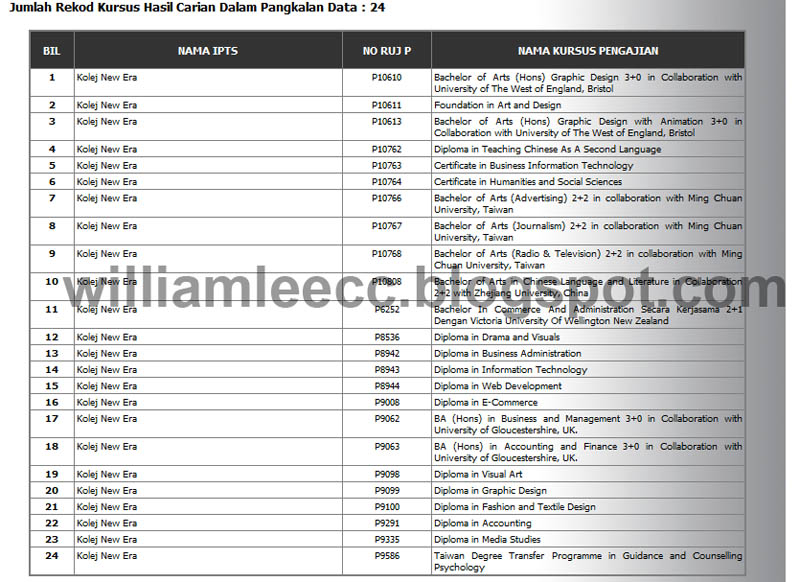
Step 3: Result will show a list of MQA Provisional Accreditation programme offered by the selected institution.
This is initial process which will help higher education providers to achieve the accreditation by enhancing the standard and quality set in the provisional accreditation evaluation.
How do I know my current studied programme's MQA status?
Go to your institution's web site / registrar / brochure/ etc to get your studied programme's MQA code. You can identify the current MQA status based on the code given. For example, based on the MQA code below, the "P" (highlighted in yellow color) represents "AKREDITASI PROVISIONAL" status (Stage 2). This means your studied programme is a "New" programme and it has been offered for a few semesters. PTPTN study loan application is allowed under this status.
MQA Code Format 1: "KPT/JPS (PA 1234) 06/12". or
MQA Code Format 2: "PA 1234"
Follow steps below to verify your studied programme's Provisional Accreditation Status.
Step 1: Go to "http://www.mqa.gov.my/eskp/index.cfm". Click "AKREDITASI PROVISIONAL" tab and "Senarai Akr Prov (Sahlaku).
Step 2: Type your college / university's name in "Nama IPTS" Text Box and click "Mula Carian".
Step 3: Result will show a list of MQA Provisional Accreditation programme offered by the selected institution.
Subscribe to:
Posts (Atom)